
Customer Directory and Order History
A single customer record with contact, business and account details, the customer's order history and delivery locations.
These images are illustrations of the concept, not screenshots of the actual product.
Overview
Customers are shared reference data in MoveTheWheels: every order is placed for one, and orders, shipments and reports all speak the same customer vocabulary. This concept illustrates the customer record reached from the Customers area of the product, where an account's details and its order history sit together on one page.
When customer information lives in a CRM and order history lives in a separate transport system, a simple question such as what a customer has ordered recently, or whether anything is still in transit, means switching tools and matching names by hand. The design puts the account and its orders side by side, so the person on the phone or the account manager preparing a review has the complete picture in one place.
The header shows the customer's name with a B2B badge, a satisfaction score shown as a star rating and an Edit button. The left column is split into three cards: Contact, with email, phone and address; Business, with tax ID, business license and registered company name, where the identifiers are masked; and Account, with the rating and the date the account was created. The right column holds an Orders card that lists recent orders with their number, a status badge, the order value and a date, plus a New order button for booking another delivery without leaving the page. A Locations card below begins a map of the customer's sites.
The record is designed to connect directly to order management. Each order in the list belongs to the same order lifecycle that runs from booking to proof of delivery, and the New order button starts that lifecycle for this customer. Customer order values are also intended to feed the revenue and delivery trends in the product's analytics.
What this concept shows
- A customer header with a B2B badge, a star satisfaction rating and an Edit action
- A Contact card with email, phone and address
- A Business card with tax ID, business license and company name, with identifiers masked
- An Account card with rating and account creation date
- An Orders card listing each order's number, status badge, value and date
- A New order button to book a delivery directly from the customer record
- A Locations card with a map of the customer's sites
How it works
- Open Customers from the navigation and choose an account from the directory.
- Review the Contact, Business and Account cards to confirm who the customer is and how to reach them.
- Scan the Orders card for recent orders and anything still in transit.
- Open an order from the list for its full detail, or choose New order to book another delivery.
- Use Edit to update the customer's details when they change.
Who it's for
- Account managers
- Customer service representatives
- Order desk staff
- Sales and finance teams reviewing account activity
Illustrations
1 illustration of this concept. Select one to view it full size.
Customer Record with Order History
This illustration shows a single customer record, reached through a Home, Customers breadcrumb, with Customers highlighted in the left navigation. The heading pairs the company name with a B2B badge and a satisfaction score of 4.6 stars in the sample, with an Edit button on the right. On the left, three stacked cards cover Contact, with email, phone and street address; Business, with a masked tax ID, a business license number and the registered company name; and Account, with a rating and a created date. On the right, an Orders card with a New order button lists five orders, each showing an order number, a status badge such as In transit or Delivered, the order value and a date. Below it, a Locations card starts a street map with a marker for one of the customer's sites. The customer, contact details and orders are all sample data.
Topics
- logistics customer directory
- customer order history
- shipper account management
- B2B customer records
- customer delivery locations
- customer satisfaction rating
- logistics CRM
- customer profile with orders
Related concepts
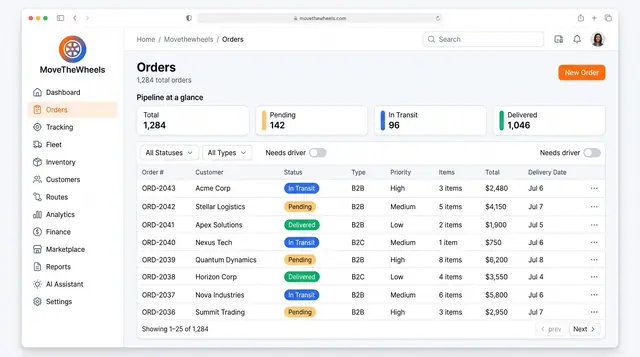
Order Lifecycle Management
Book a delivery, watch it move through the pipeline, assign a driver and vehicle, and keep its documents with the order.
3 illustrations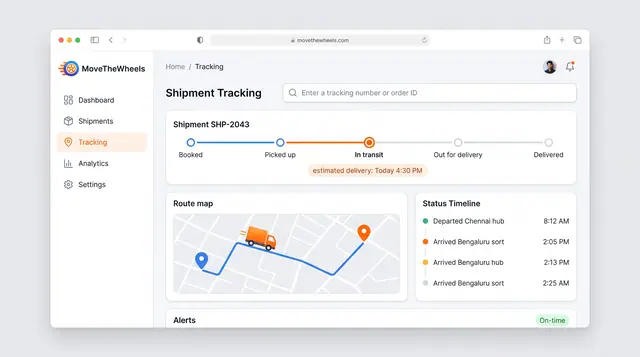
Shipment Tracking and Live Map
Follow one shipment from booking to delivery with an estimated arrival, then zoom out to every vehicle moving across the network.
2 illustrations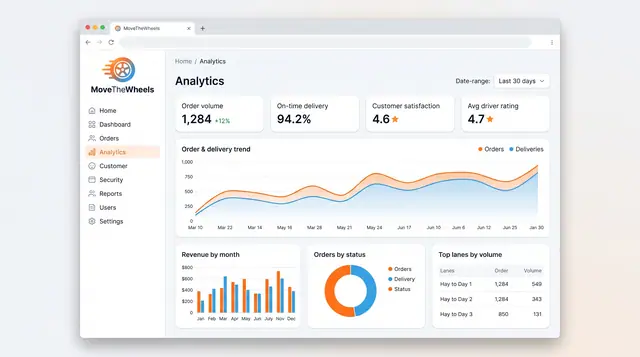
Analytics and Scheduled Reports
Follow order volume, on-time delivery, revenue and busiest lanes, then generate, export and schedule the reports your team relies on.
2 illustrations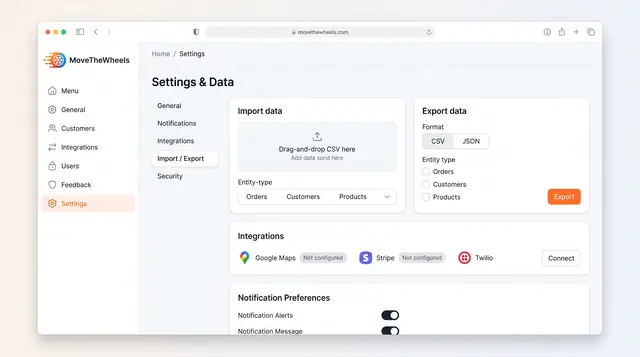
Data Import, Export and Integrations
Bring orders, customers and products in from CSV, export them as CSV or JSON, and connect maps, payments and messaging services.
1 illustration