
Order Lifecycle Management
Book a delivery, watch it move through the pipeline, assign a driver and vehicle, and keep its documents with the order.
These images are illustrations of the concept, not screenshots of the actual product.
Overview
Every shipment in MoveTheWheels starts as an order, so the order record is the anchor the rest of the platform hangs from. This concept illustrates the complete order lifecycle across three screens: an orders list that shows the whole pipeline, a detail view for a single order and a form for booking a new delivery.
In many operations, orders are captured in one system, drivers are assigned by phone and the status lives in someone's head until a customer calls. The design keeps all of this on the order itself: who it is for, what it contains, where it stands, who is carrying it and which documents prove what happened.
The Orders page opens with a Pipeline at a glance row that counts total, pending, in-transit and delivered orders. Status and type dropdowns and a Needs driver toggle narrow a paginated table whose columns cover order number, customer, status, B2B or B2C type, priority, item count, total value and delivery date. Opening an order brings up a three-column detail view: customer and line items on the left; a status timeline in the middle running from Placed through Confirmed, Assigned, Picked up and In transit to Out for delivery and Delivered; and on the right an Assignment card with vehicle and driver pickers, an Assign driver and vehicle button and a button that advances the order to its next stage. A Documents card keeps the proof-of-delivery photo and the bill of lading with the order. The New Order form captures the customer, order type, a priority from Low to Urgent, pickup and delivery addresses, line items with quantity and weight, a scheduled delivery date and special instructions.
The order connects outward to the rest of MoveTheWheels. Its customer has a record in the customer directory, the Track live action leads to shipment tracking, the assignment draws on the fleet and driver roster, and the Manage in Files link points to shared document storage.
What this concept shows
- A Pipeline at a glance row counting total, pending, in-transit and delivered orders
- An orders table with order number, customer, status, type, priority, items, total and delivery date columns
- Status and type filters plus a Needs driver toggle for unassigned work
- An order status timeline from Placed to Delivered with a time on every step
- An Assignment card to pick a vehicle and driver and advance the order to its next stage
- Proof-of-delivery photos and bills of lading attached to the order
- A New Order form with B2B or B2C type, four priority levels, pickup and delivery addresses and weighted line items
How it works
- Choose New Order and book the delivery with customer, order type, priority, pickup and delivery addresses, items, scheduled date and instructions.
- Create the order and find it in the Orders table, where the pipeline tiles and filters show where it sits.
- Turn on Needs driver to isolate orders that still need an assignment.
- Open the order, choose a vehicle and a driver, and assign them.
- Advance the order through its stages as it is picked up and moves toward the customer, with each step recorded on the status timeline.
- Keep the bill of lading and proof-of-delivery photo with the order, or use Track live to follow the shipment.
Who it's for
- Order desk and customer service staff
- Dispatchers assigning drivers and vehicles
- Operations managers watching the order pipeline
- E-commerce and B2B sales teams booking deliveries
Illustrations
3 illustrations of this concept. Select one to view it full size.
Orders Pipeline and Table
This illustration shows the Orders page, with Orders highlighted in the left navigation, a total order count under the title and a New Order button at the top right. A Pipeline at a glance row presents four tiles for Total, Pending, In Transit and Delivered, with the last three marked by an accent bar in their status color. A filter bar offers All Statuses and All Types dropdowns and a Needs driver toggle. The table beneath lists orders with columns for order number, customer, status, type, priority, number of items, total and delivery date, plus an overflow menu on each row. Status appears as colored badges for In Transit, Pending and Delivered, type as B2B or B2C, and priority as High, Medium or Low. A footer reports the visible range out of the total and offers previous and next buttons. Company names, amounts and dates are sample data.
Order Detail with Timeline and Assignment
This illustration shows a single order in transit, reached through the Orders breadcrumb, with the order number and an In Transit badge in the heading and Edit, Print and Track live buttons at the top right. The left column holds a Customer card with the company, a contact email and the delivery address, and an Items card listing line items with quantities. The center Status Timeline runs from Placed, Confirmed, Assigned and Picked up to a highlighted In transit step, with Out for delivery and Delivered still ahead, each stamped with a time. On the right, an Assignment card offers Vehicle and Driver dropdowns, a prominent Assign driver and vehicle button and an Advance to Out for Delivery button. A Documents card with a Manage in Files link lists a proof-of-delivery photo and a bill of lading. The customer, vehicle and driver are sample data.
New Order Booking Form
This illustration shows the New Order form, subtitled as the place to book a new delivery and reached through the Orders breadcrumb. The first row pairs a Customer dropdown with an Order type switch for B2B or B2C and a Priority selector for Low, Medium, High and Urgent, with Urgent selected in the example. Pickup and delivery addresses sit side by side, each with street, city and ZIP fields. An Items section provides rows for item name, quantity and weight, each with a dashed Add item button for adding more lines. Below are a Scheduled delivery date picker and a Special instructions text area, and the form ends with Cancel and Create Order buttons. The design demonstrates that everything dispatch needs to plan a load, including weight and priority, is captured at the moment of booking. Field values are sample placeholders.
Topics
- logistics order management
- order to delivery tracking
- assign driver and vehicle to order
- delivery booking form
- B2B and B2C order management
- order status timeline
- proof of delivery documents
- freight order pipeline
- transport order management system
Related concepts
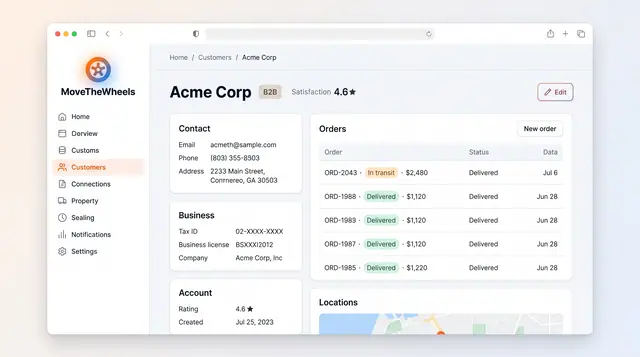
Customer Directory and Order History
A single customer record with contact, business and account details, the customer's order history and delivery locations.
1 illustration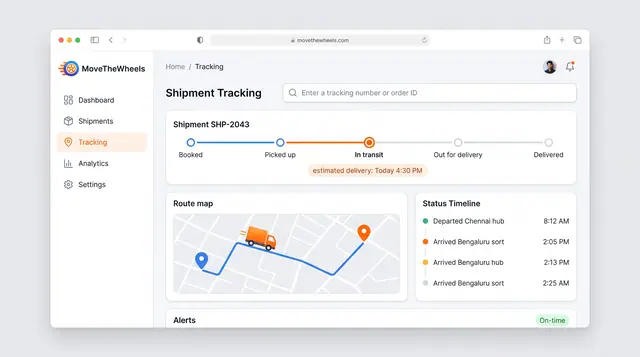
Shipment Tracking and Live Map
Follow one shipment from booking to delivery with an estimated arrival, then zoom out to every vehicle moving across the network.
2 illustrations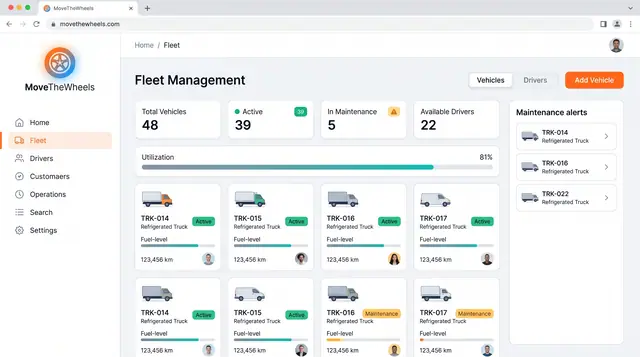
Fleet and Driver Management
See every vehicle and driver in one place: status, utilization, maintenance, documents and who is assigned to what.
3 illustrations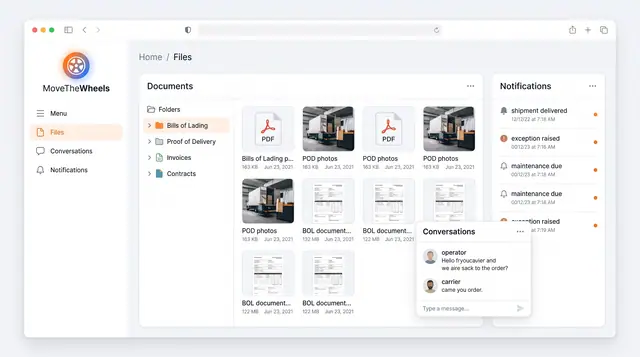
Documents, Notifications and Conversations
Keep bills of lading, proof of delivery and invoices in one library, with shipment alerts and operator-carrier chat alongside.
1 illustration