
Shipment Tracking and Live Map
Follow one shipment from booking to delivery with an estimated arrival, then zoom out to every vehicle moving across the network.
These images are illustrations of the concept, not screenshots of the actual product.
Overview
Where is my freight? is the question logistics teams answer most often, and this concept is designed to answer it at two scales. The first screen tracks a single shipment in detail; the second is a live map of every vehicle on the road across the network.
Tracking information is often scattered across carrier portals, driver phone calls and email updates, so the answer arrives late and in pieces. The design turns tracking events into one continuous narrative for each load and plots the whole fleet on one map, so an operator can answer a customer and spot a problem in the same place.
The Shipment Tracking page starts with a search box that accepts a tracking number or an order ID. The selected shipment shows a five-stage progress tracker from Booked and Picked up through In transit and Out for delivery to Delivered, with the current stage emphasized and a chip giving the estimated delivery time. Below, a Route map draws the path from origin to destination with a truck marker at the vehicle's position, and a Status Timeline lists hub departures and arrivals with times. An Alerts section closes the page with an on-time status badge in the example. The Live Map, reached from Tracking, fills the screen with a regional map of route lines and vehicle pins. Filter chips switch between all, in-transit, idle and delayed vehicles, each with a count, next to a large total of active vehicles. Floating labels give a vehicle's identifier and speed, a scrollable list in the corner shows each vehicle's speed and state, and a legend explains the in-transit, idle and delayed styles.
Tracking sits between orders and exceptions in MoveTheWheels. A shipment is born from an order, the order detail's Track live action leads here, and delayed vehicles on the map point toward the exception queue. The vehicles on the map are the same assets managed in the fleet and driver areas of the product.
What this concept shows
- A search box that finds a shipment by tracking number or order ID
- A five-stage progress tracker from Booked to Delivered with an estimated delivery chip
- A route map with origin and destination pins and a truck marker at the vehicle's position
- A status timeline of hub departures and arrivals with times
- A full-screen live map of vehicle pins and route lines across a region
- Vehicle filters for all, in-transit, idle and delayed, with counts and an active-vehicle total
- Floating vehicle labels with identifier and speed, a vehicle list with state indicators and a map legend
How it works
- Open Tracking and enter a tracking number or order ID in the search box.
- Read the progress tracker to see which stage the shipment has reached and when it is expected.
- Check the route map for the vehicle's position between origin and destination.
- Review the status timeline and alerts for hub events and whether the load is on time.
- Switch to the Live Map to see every vehicle across the network.
- Filter to delayed or idle vehicles and pick one from the list or the map to see its speed and state.
Who it's for
- Customer service teams answering delivery questions
- Dispatchers monitoring vehicles on the road
- Operations managers overseeing the network
- Shippers and third-party logistics clients checking on their freight
Illustrations
2 illustrations of this concept. Select one to view it full size.
Single Shipment Tracking with Estimated Delivery
This illustration shows the Shipment Tracking page, with Tracking highlighted in the left navigation and a wide search field that accepts a tracking number or order ID. The first card follows one sample shipment through a five-stage progress tracker: Booked and Picked up are complete, In transit is emphasized as the current stage, and Out for delivery and Delivered are still ahead, with a chip underneath giving the estimated delivery time for later today. Below, a Route map card draws the path from an origin pin to a destination pin with a truck marker partway along the route. Beside it, a Status Timeline lists hub events such as departing one hub and arriving at a sorting center, each with a time and a colored dot. An Alerts section begins at the bottom with an On-time badge. Cities, times and the shipment number are sample data.
Fleet-Wide Live Tracking Map
This illustration shows the Live Map, reached through a Home, Tracking, Live Map breadcrumb. A regional map fills the page, crossed by route lines and dotted with truck pins. At the top left, a floating panel holds filter chips for all vehicles, in transit, idle and delayed, each with a count, next to a large figure for vehicles active. Labels on the map give individual vehicles' identifiers and current speeds. A scrollable list at the lower left shows one vehicle per row with an icon, identifier, speed and state, such as on route, idle at the depot or delayed, followed by a status dot. A legend in the lower right explains the styles for In Transit, Idle and Delayed, and a locate button sits in the top right corner. The header offers notifications and a profile menu. The region, vehicles and counts are sample data.
Topics
- shipment tracking
- real-time freight tracking
- track shipment by order ID
- live fleet map
- vehicle tracking dashboard
- delivery ETA
- shipment status timeline
- live vehicle location map
- where is my shipment
Related concepts
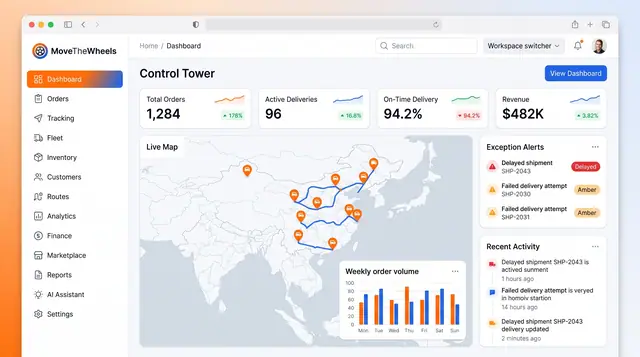
Control Tower Dashboard
One home screen for the whole network: headline KPIs, a live map of moving freight, open exceptions and the latest activity.
2 illustrations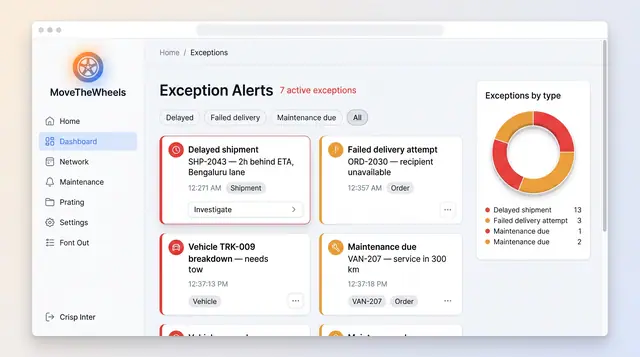
Exceptions and At-Risk Shipments
See delays, failed deliveries and maintenance issues in one board, plus a ranked queue of loads predicted to miss their window.
2 illustrations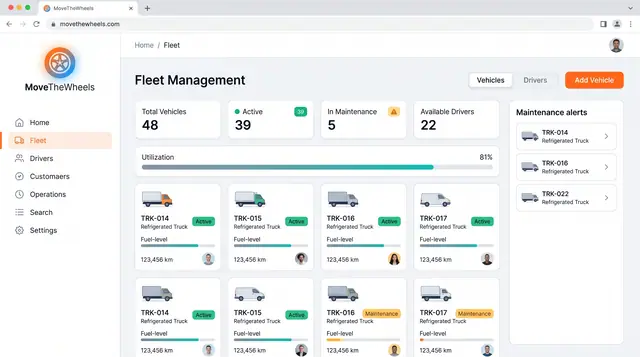
Fleet and Driver Management
See every vehicle and driver in one place: status, utilization, maintenance, documents and who is assigned to what.
3 illustrations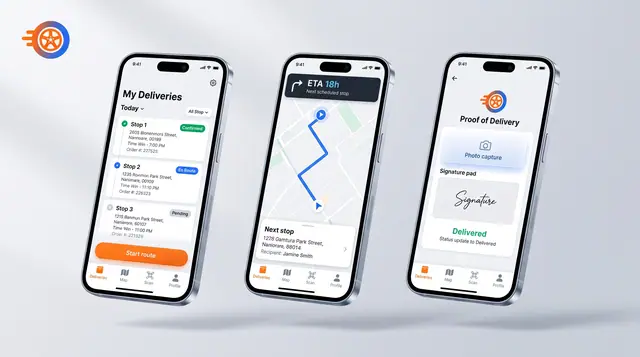
Driver Mobile App
Give drivers their day's stops, guidance to the next one and photo-and-signature proof of delivery on their phone.
1 illustration