
Fleet and Driver Management
See every vehicle and driver in one place: status, utilization, maintenance, documents and who is assigned to what.
These images are illustrations of the concept, not screenshots of the actual product.
Overview
Fleet and Driver Management is the supply side of dispatch in MoveTheWheels. Orders and shipments describe what needs to move; this concept describes what is available to move it. The design brings vehicles and the people who drive them into a single area of the workspace, so a fleet manager or dispatcher can answer the everyday questions quickly: how many vehicles are rolling, which ones are off the road for maintenance, which drivers are free, and who is assigned to which truck.
The illustrated experience starts with a fleet overview. Summary tiles count total, active and in-maintenance vehicles alongside available drivers, and a utilization bar shows how much of the fleet is currently working. Below, each vehicle appears as a card with its identifier, body type, a status chip, a fuel-level bar, its odometer reading and the avatar of the assigned driver. A maintenance alerts rail on the right lists the vehicles that need attention, each one a click away from its full record.
Opening a vehicle leads to a detail page that the design organizes into panels: vehicle specifications such as type, load capacity, license plate and ownership; the assigned driver with contact details; telemetry showing a fuel gauge, total mileage and current location; a maintenance history split into past and upcoming service events; and a documents panel for registration and insurance files that links to the shared Files area. From the header, the vehicle can be edited or assigned straight to a delivery.
The drivers roster completes the picture. Workforce tiles show how many drivers are on duty, on break or off duty and the average rating, while a filterable table lists each driver with employee ID, live status, license class, phone, rating and assigned vehicle. Together these screens are designed to feed route planning, dispatch and the driver mobile app with an accurate, current view of capacity.
What this concept shows
- Fleet summary tiles for total, active and in-maintenance vehicles plus available drivers
- A fleet-wide utilization bar showing how much capacity is in use
- Vehicle cards with status chip, fuel level, odometer and assigned driver avatar
- A maintenance alerts rail that surfaces vehicles needing service
- Vehicle records with specifications, telemetry, maintenance history and linked registration and insurance documents
- An Assign to a delivery action and an Edit button in the vehicle record header
- A drivers roster with on-duty, on-break and off-duty counts, average rating, and filters by status and license class
How it works
- Open the fleet overview to check vehicle counts, utilization and available drivers at a glance.
- Scan the vehicle cards and the maintenance alerts rail to spot trucks that are off the road or low on fuel.
- Open a vehicle to review its specifications, telemetry, maintenance history and documents.
- Assign the vehicle to a delivery, or edit its record, from the detail page header.
- Switch to the drivers roster, filter by status or license class, and confirm who is on duty and which vehicle each driver holds.
Who it's for
- Fleet managers
- Dispatchers
- Transport and operations managers
- Carriers and fleet operators
Illustrations
3 illustrations of this concept. Select one to view it full size.
Fleet Overview
This illustration shows the Fleet Management page, reached from the Fleet item in the left navigation. The header offers a Vehicles and Drivers toggle and an Add Vehicle button. Four summary tiles count total vehicles, active vehicles, vehicles in maintenance (marked with a warning icon) and available drivers, and a full-width bar shows overall fleet utilization as a percentage. Below sits a grid of vehicle cards, each with a vehicle illustration, an identifier, the body type (refrigerated trucks in the sample data), a status chip reading Active or Maintenance, a fuel-level bar, an odometer reading in kilometers and the assigned driver's avatar. Low fuel is shown by a short, warm-colored bar. A Maintenance alerts panel on the right lists vehicles that need service, each row opening that vehicle's record. The design demonstrates how a fleet manager can read the state of the whole fleet without opening a single record.
Vehicle Detail Record
This illustration shows a single vehicle's record, reached through a Home, Fleet, Vehicles breadcrumb. The header pairs the vehicle identifier and make and model with an Active status chip, next to an Edit button and a primary Assign to a delivery action. The page is arranged as five panels. Vehicle specifications list type, load capacity in tonnes, license plate and ownership. Assigned Driver shows the driver's photo, name and contact details. Telemetry combines a circular fuel gauge with total mileage and the current location. Maintenance History presents a short timeline split into past and upcoming service events. Documents lists registration and insurance files as PDFs, each with a Manage in Files link, plus an empty-state hint to add more documents in Files. The design demonstrates how operational, legal and maintenance information about a vehicle can live on one page, ready for assignment.
Drivers Roster
This illustration shows the Drivers page under Fleet, headed by a total driver count and an Add Driver button. A Workforce at a glance row uses color-coded tiles for drivers on duty, on break and off duty, plus the average driver rating shown with a star. Beneath, two dropdown filters narrow the list by status and by license class. The table lists each driver with an avatar and name, employee ID, a status chip (every sample row reads On delivery), license class, phone number, star rating and the identifier of the assigned vehicle, with an overflow menu at the end of each row and pagination at the bottom. The names and numbers are invented sample data. The design demonstrates how a dispatcher can see who is working, what they are qualified to drive and which truck they hold before making an assignment.
Topics
- fleet management software
- vehicle utilization dashboard
- driver roster
- fleet maintenance alerts
- vehicle telemetry
- driver assignment
- truck fleet tracking
- fleet documents registration insurance
- logistics fleet overview
Related concepts
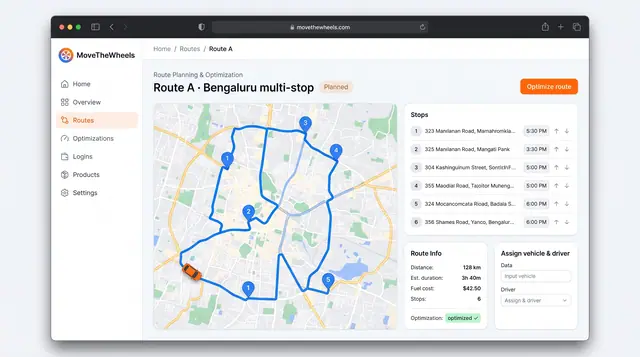
Route Optimization and Dispatch Proposals
Sequence multi-stop routes with distance, time and fuel cost in view, and review explained dispatch proposals before accepting them.
2 illustrations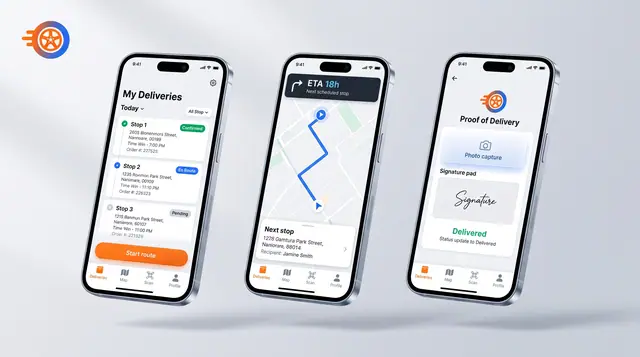
Driver Mobile App
Give drivers their day's stops, guidance to the next one and photo-and-signature proof of delivery on their phone.
1 illustration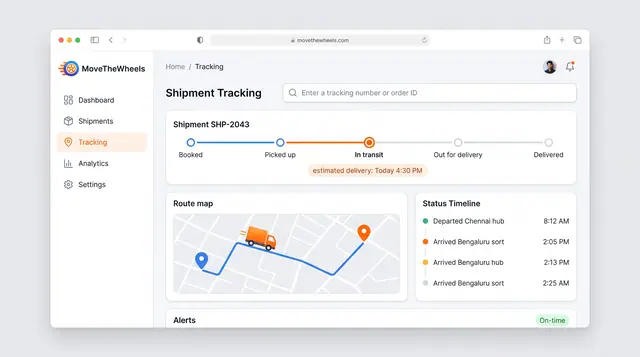
Shipment Tracking and Live Map
Follow one shipment from booking to delivery with an estimated arrival, then zoom out to every vehicle moving across the network.
2 illustrations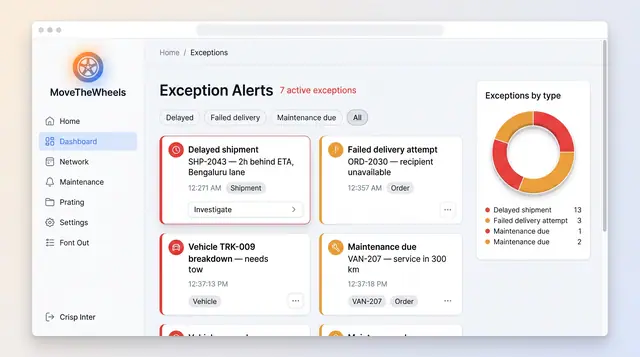
Exceptions and At-Risk Shipments
See delays, failed deliveries and maintenance issues in one board, plus a ranked queue of loads predicted to miss their window.
2 illustrations