Driver Mobile App
Give drivers their day's stops, guidance to the next one and photo-and-signature proof of delivery on their phone.
These images are illustrations of the concept, not screenshots of the actual product.
Overview
The Driver Mobile App is the part of MoveTheWheels that leaves the office. Routes, stop sequences and assignments are planned on the desktop, but the delivery itself happens on the road, and the driver needs a simple tool that shows where to go next and captures what happened at the door. This concept shows that tool across three phone screens.
The first screen, My Deliveries, lists the day's stops in order. Each stop card carries the delivery address, a time window and an order number, with a status label: confirmed, en route or pending. A date selector and a stop filter sit at the top, and a prominent Start route button begins the run. The second screen switches to navigation: a banner shows the next turn and the estimated time to the next scheduled stop, a map draws the path from the driver's position to the destination, and a bottom sheet names the next stop's address and recipient.
The third screen handles proof of delivery. The driver takes a photo of the handover, collects the recipient's signature on a signature pad and confirms the delivery, which updates the stop's status to Delivered. A tab bar across all three screens gives quick access to Deliveries, Map, Scan and Profile, suggesting that scanning is part of the same app.
Within the wider product, the design connects the app to route planning and dispatch on one side and to shipment tracking on the other: stops come from the planned route, and each status change and proof-of-delivery capture is intended to flow back to the tracking timeline, the control tower and the shipment's documents, closing the loop from dispatch to a proven delivery.
What this concept shows
- A My Deliveries list of the day's stops with address, time window and order number
- Per-stop status labels for confirmed, en route and pending
- A Start route button that begins the day's run
- Navigation view with next-turn banner, estimated time to the next stop and a mapped path
- A next-stop sheet showing the delivery address and recipient
- Proof of delivery with photo capture and an on-screen signature pad
- A delivered confirmation that updates the stop's status
- Bottom tabs for Deliveries, Map, Scan and Profile
How it works
- Open My Deliveries to review today's stops, time windows and order numbers.
- Tap Start route to begin the run.
- Follow the navigation view to the next scheduled stop and check the recipient details.
- At the door, capture a photo and collect the recipient's signature.
- Confirm the handover so the stop's status updates to Delivered, then move on to the next stop.
Who it's for
- Delivery drivers
- Dispatchers
- Fleet operators and carriers
- Last-mile delivery teams
Illustrations
1 illustration of this concept. Select one to view it full size.
Deliveries, Navigation and Proof of Delivery
This illustration shows three smartphones side by side, each running a screen of the driver app with a shared bottom tab bar for Deliveries, Map, Scan and Profile. The left phone shows My Deliveries for today, with a settings icon, a stop filter and three stop cards, each with an address, a time window and an order number, marked Confirmed, En Route and Pending along a vertical progress line. An orange Start route button sits below. The middle phone shows navigation: a dark banner with a turn arrow and the estimated time to the next scheduled stop, a street map with a blue path, and a Next stop sheet with the address and recipient. The right phone shows Proof of Delivery with a Photo capture tile, a Signature pad holding a signature, and a Delivered confirmation noting the status update. Addresses and names are sample data.
Topics
- driver mobile app
- delivery driver app
- proof of delivery app
- electronic proof of delivery
- signature capture delivery
- last-mile delivery app
- driver navigation app
- delivery stop list
- ePOD photo capture
Related concepts
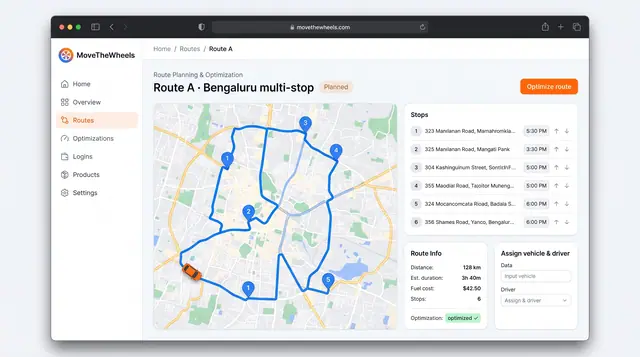
Route Optimization and Dispatch Proposals
Sequence multi-stop routes with distance, time and fuel cost in view, and review explained dispatch proposals before accepting them.
2 illustrations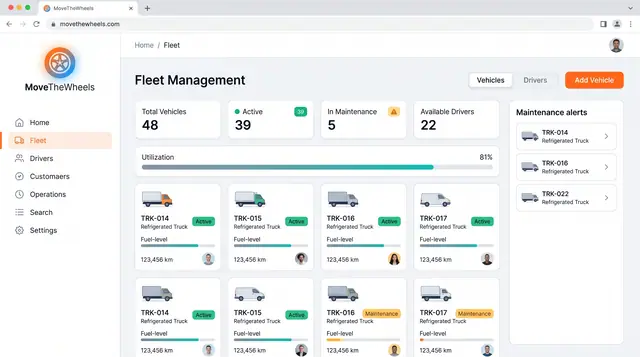
Fleet and Driver Management
See every vehicle and driver in one place: status, utilization, maintenance, documents and who is assigned to what.
3 illustrations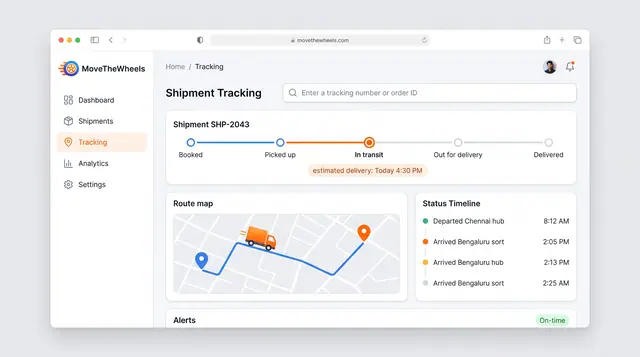
Shipment Tracking and Live Map
Follow one shipment from booking to delivery with an estimated arrival, then zoom out to every vehicle moving across the network.
2 illustrations
Documents, Notifications and Conversations
Keep bills of lading, proof of delivery and invoices in one library, with shipment alerts and operator-carrier chat alongside.
1 illustration