
Warehouses, Inventory and Product Catalog
Track warehouse capacity and bin locations, keep on-hand, allocated and available stock honest, and record how each product is handled.
These images are illustrations of the concept, not screenshots of the actual product.
Overview
Warehouses, Inventory and Product Catalog is the storage layer of MoveTheWheels. Before an order can become a shipment, someone has to know where the goods are, how many can actually be promised, and whether they need special handling on the way. The concept brings those three questions into one area of the workspace so that warehouse, inventory and transport teams share the same stock record instead of reconciling separate systems.
The warehouses illustration lays out each facility as a card with its name, code, type (distribution, fulfillment or cold storage), address and a capacity bar showing how full it is in units. On one highlighted facility, a pop-out panel reveals its storage locations as a grid of bin codes, each with an occupancy indicator, together with its operating hours.
The inventory illustration is described as real-time stock across warehouses. Tiles total on-hand, available and allocated units and count low-stock items, and a warning banner flags products whose available quantity is at or below the reorder point. A table lists each product by SKU and warehouse with on-hand, allocated, available, reorder point and a Low or In stock status. An Adjust stock action opens a small form for a plus or minus quantity and a reason, and a recent transactions rail records inbound, outbound and adjustment movements with signed quantities and timestamps.
The product catalog illustration shows products as cards with category, brand, weight and handling flags for fragile, hazardous and temperature-sensitive goods. A detail drawer adds dimensions, item value, handling toggles and stock levels per warehouse. Because orders, shipments and analytics all refer to the same products and stock, the design is meant to let a fulfilled order pass from the shelf to dispatch without re-keying, with its handling requirements travelling alongside it.
What this concept shows
- Warehouse cards with facility type, address and a capacity-used bar
- A storage locations grid with per-bin occupancy indicators and operating hours
- Inventory tiles for on-hand, available, allocated and low-stock counts
- A low-stock warning tied to each product's reorder point
- An inventory table by SKU and warehouse with on-hand, allocated, available and status
- Inline stock adjustment with a quantity change and a reason
- A recent transactions rail for inbound, outbound and adjustment movements
- Product cards and a detail drawer with fragile, hazardous and temperature-controlled handling flags and per-warehouse stock
How it works
- Review the warehouses page to compare facility types and how much capacity each one has left.
- Open a facility's locations to see which storage bins are free or occupied and when it operates.
- Move to inventory to check on-hand, allocated and available stock and act on the low-stock warning.
- Use Adjust stock to record a correction with a quantity change and a reason, and confirm it in recent transactions.
- Open a product in the catalog to confirm its dimensions, handling requirements and stock in each warehouse.
Who it's for
- Warehouse managers
- Inventory controllers
- Fulfillment and e-commerce operations teams
- Third-party logistics providers
- Procurement and planning teams
Illustrations
3 illustrations of this concept. Select one to view it full size.
Warehouses and Storage Locations
This illustration presents the Warehouses page on a desktop monitor, reached through a Home, Inventory, Warehouses breadcrumb, with the subtitle manage your warehouses and locations and an Add Warehouse button. The page is a grid of warehouse cards. Each card shows a building icon, the facility name and code, a colored type badge reading Distribution, Fulfillment or Cold Storage, an address line with a location pin, and a capacity line giving the percentage used and units stored against total units, backed by a progress bar in the badge's color. One card is highlighted with a pop-out panel titled Locations that lays out storage bins as short aisle-and-shelf codes, each with a small colored dot indicating occupancy, followed by the facility's operating hours. All names, addresses and figures are sample data. The design demonstrates how capacity and bin-level space can be read at a glance across facilities.
Real-Time Inventory
This illustration shows the Inventory page, subtitled real-time stock across warehouses. Four tiles total on-hand units, available units, allocated units and the number of low-stock items, each in its own color. An amber banner warns that available stock is at or below the reorder point for some products. The main table lists product, SKU, warehouse, on hand, allocated, available, reorder point and status, with amber Low and green In stock chips. On one row, an Adjust stock button has opened an inline form with a plus-or-minus quantity field and a reason dropdown. A Recent transactions rail on the right lists inbound, outbound and adjustment movements, each with a signed quantity, a date and a time. Product names and quantities are sample data. The design demonstrates keeping one honest stock record in which every change is explained and traceable.
Product Catalog and Handling Flags
This illustration shows the Products page under Inventory, with an Add Product button and a search field above a grid of product cards. Each card has a thumbnail, the product name and SKU, a category chip, the brand, the weight in kilograms and a row of handling flags: Fragile, Hazardous and a temperature indicator. The sample catalog repeats one industrial packaging product. On the right, a Product Detail drawer with a close button shows the selected product's thumbnail, name and SKU, its dimensions and item value, a Handling section with toggles for fragile, hazardous and temperature-controlled, and a Stock Levels list giving the quantity held in each of four warehouses. The design demonstrates how handling requirements and stock distribution can be recorded against the product itself, so that orders, picking and transport all inherit the same instructions.
Topics
- warehouse management
- inventory management software
- real-time stock levels
- available vs allocated stock
- reorder point alerts
- stock adjustment ledger
- warehouse capacity tracking
- bin location management
- product catalog handling requirements
- hazardous and temperature-controlled goods
Related concepts
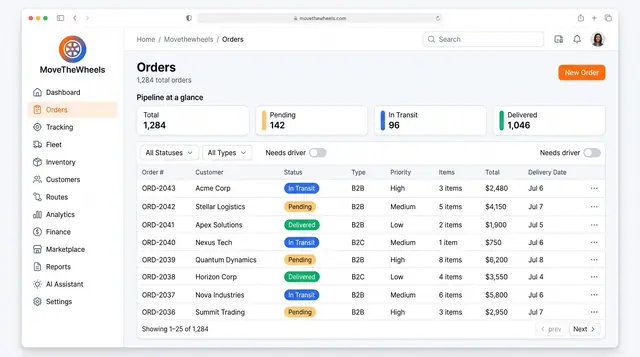
Order Lifecycle Management
Book a delivery, watch it move through the pipeline, assign a driver and vehicle, and keep its documents with the order.
3 illustrations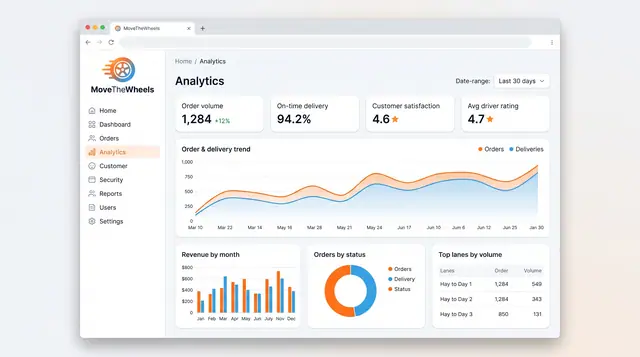
Analytics and Scheduled Reports
Follow order volume, on-time delivery, revenue and busiest lanes, then generate, export and schedule the reports your team relies on.
2 illustrations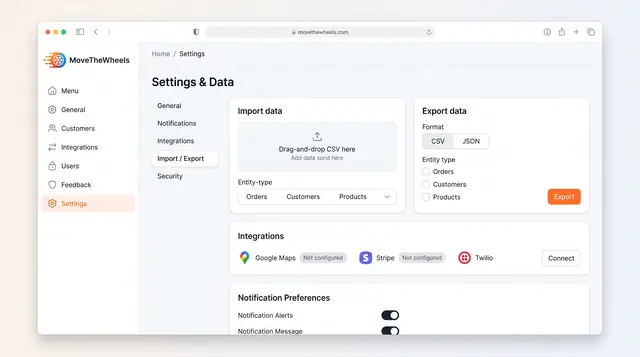
Data Import, Export and Integrations
Bring orders, customers and products in from CSV, export them as CSV or JSON, and connect maps, payments and messaging services.
1 illustration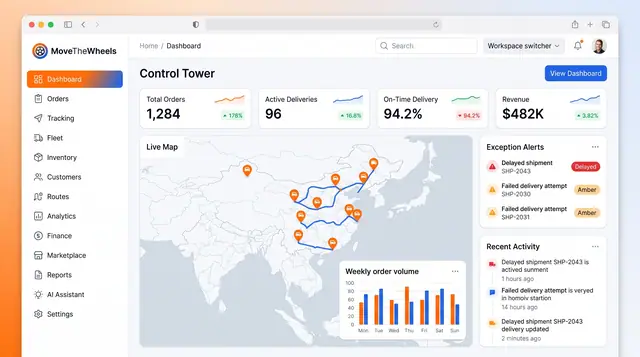
Control Tower Dashboard
One home screen for the whole network: headline KPIs, a live map of moving freight, open exceptions and the latest activity.
2 illustrations