
Data Import, Export and Integrations
Bring orders, customers and products in from CSV, export them as CSV or JSON, and connect maps, payments and messaging services.
These images are illustrations of the concept, not screenshots of the actual product.
Overview
This concept shows the Settings and Data area of MoveTheWheels, where a workspace moves its records in and out and connects the outside services it relies on. One page brings together data import, data export, integrations with mapping, payment and messaging providers, and notification preferences.
Adopting a new logistics platform usually starts with a spreadsheet: the customer list, the product catalog and the open orders all sit in files exported from an older system. Getting them in quickly, and being able to take data back out at any time, decides whether a team can switch without re-keying and without feeling locked in. The design treats import and export as everyday settings rather than a one-off migration project.
Settings has its own secondary menu for General, Notifications, Integrations, Import / Export and Security, with Import / Export selected in the illustration. The Import data card offers a drag-and-drop zone for CSV files and an entity-type selector for orders, customers or products. The Export data card lets the user pick CSV or JSON, tick which entity types to include and press Export. An Integrations card lists a mapping service, a payments provider and a messaging provider, two of them marked Not configured, with a Connect button. Below, Notification Preferences holds toggles for notification alerts and notification messages.
Imported customers and products are designed to feed the customer directory, product catalog and order screens, while exports give analysts and finance teams a clean copy of the same records. Integrations are intended to extend the rest of the product: maps behind tracking and routing, payments behind billing, and messaging behind customer and driver notifications.
What this concept shows
- A secondary settings menu for General, Notifications, Integrations, Import / Export and Security
- A drag-and-drop CSV import zone with an entity-type selector for orders, customers and products
- Export in CSV or JSON, with checkboxes to choose orders, customers and products
- An integrations card for mapping, payments and messaging services with configuration status badges and a Connect action
- Notification preference toggles for alerts and messages
How it works
- Open Settings and choose Import / Export from the settings menu.
- Pick the entity type to import, such as customers or products, and drop a CSV file onto the upload zone.
- To take data out, choose CSV or JSON, tick orders, customers or products and select Export.
- Review the Integrations card and connect the mapping, payment or messaging service the workspace needs.
- Adjust notification preferences with the alert and message toggles.
Who it's for
- Workspace administrators
- Operations teams migrating from spreadsheets or older systems
- Data and finance analysts
- Implementation and integration partners
Illustrations
1 illustration of this concept. Select one to view it full size.
Settings and Data: Import, Export and Integrations
This light-theme illustration shows the Settings and Data page, with Settings highlighted in the main sidebar and a secondary menu listing General, Notifications, Integrations, Import / Export and Security, where Import / Export is selected. The Import data card contains a dashed drag-and-drop zone for CSV files and an entity-type selector offering orders, customers and products. The Export data card has a CSV and JSON format toggle, checkboxes for orders, customers and products, and an Export button. An Integrations card lists a mapping service, a payments provider and a messaging provider, the first two tagged Not configured, with a Connect button. A Notification Preferences card at the bottom shows toggle switches for notification alerts and notification messages, shown switched on. The page demonstrates data portability and outside connections managed in one place.
Topics
- import orders from CSV
- logistics data import
- export customers to JSON
- CSV export for logistics data
- bulk upload products
- logistics software integrations
- maps integration for tracking
- payment provider integration
- messaging integration for notifications
- notification preferences
- migrate to a logistics platform
Related concepts
Customer Directory and Order History
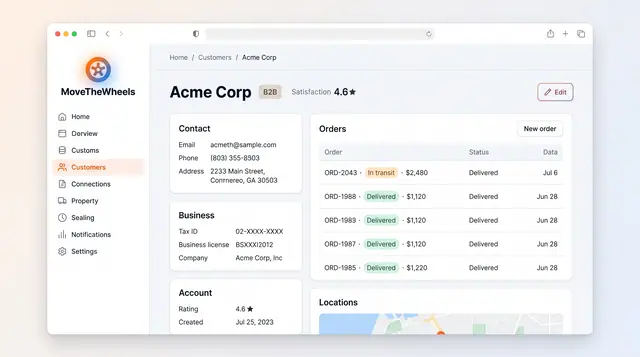
A single customer record with contact, business and account details, the customer's order history and delivery locations.
1 illustration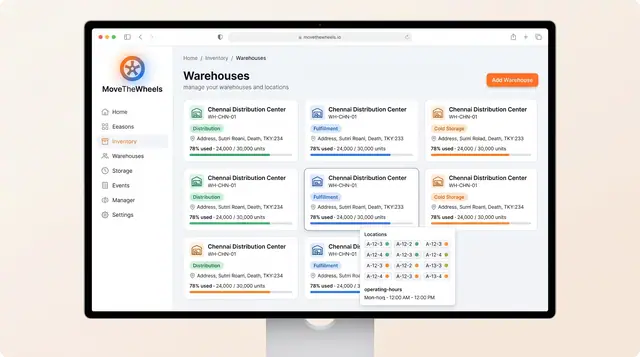
Warehouses, Inventory and Product Catalog
Track warehouse capacity and bin locations, keep on-hand, allocated and available stock honest, and record how each product is handled.
3 illustrations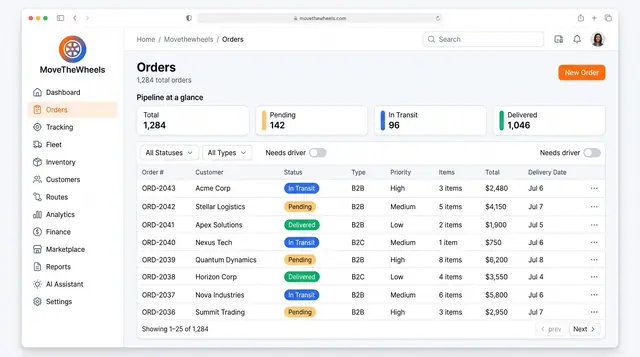
Order Lifecycle Management
Book a delivery, watch it move through the pipeline, assign a driver and vehicle, and keep its documents with the order.
3 illustrations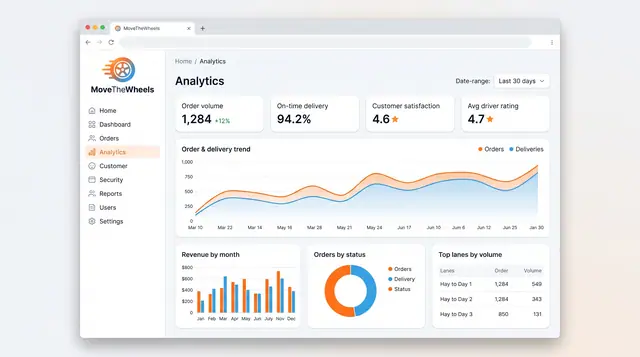
Analytics and Scheduled Reports
Follow order volume, on-time delivery, revenue and busiest lanes, then generate, export and schedule the reports your team relies on.
2 illustrations